
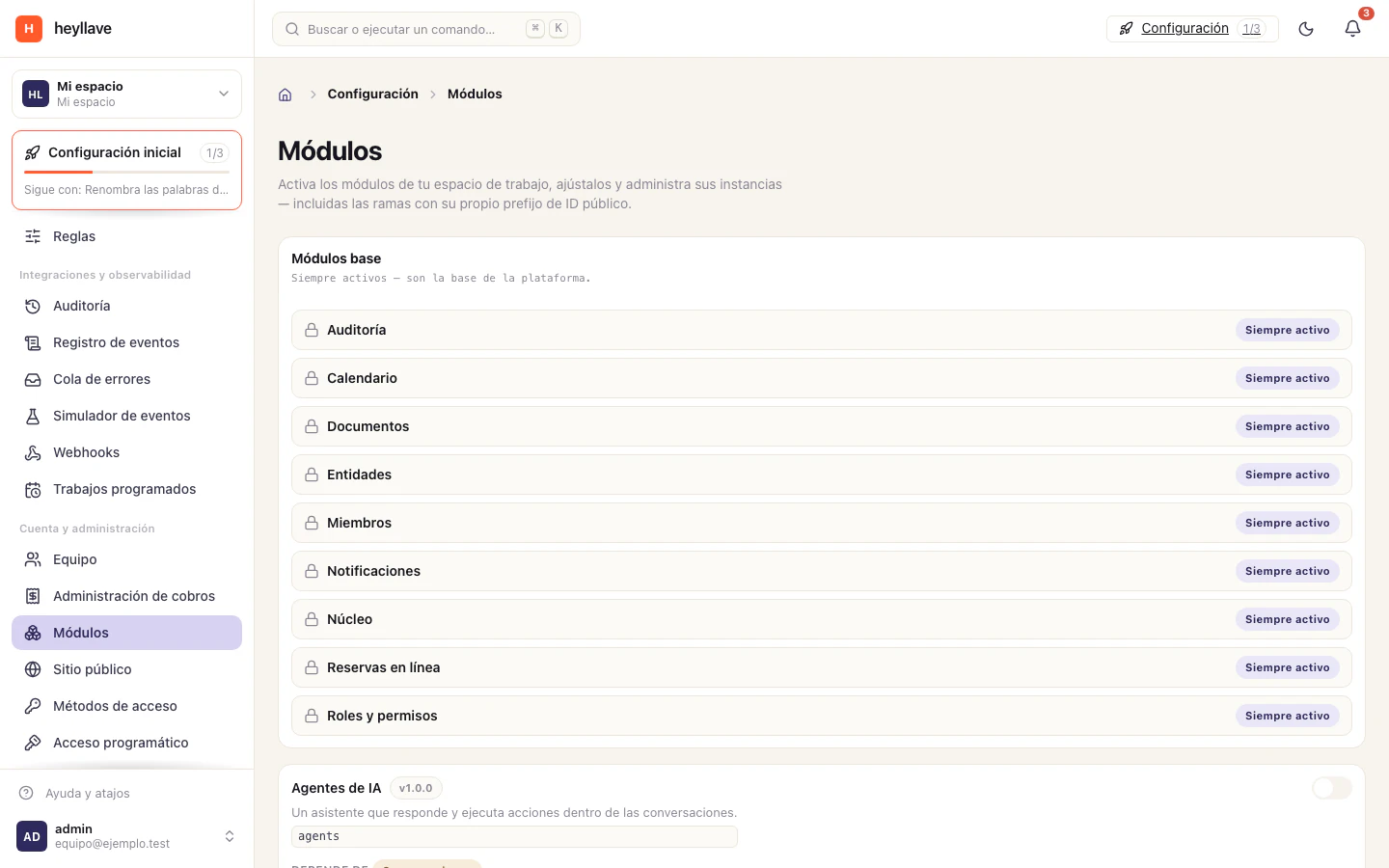
Heyllave is not one product everybody uses the same way. It is a set of modules, and your workspace enables the ones its business needs.
That explains two things that confuse people at first:
- Why two Heyllave workspaces look different.
- Why this help documents sections you do not have.
Foundation modules
These are always active and cannot be switched off: they are the base everything else runs on.
| Module | What it provides |
|---|---|
| Users | Accounts, profiles and passwords. |
| Members | Who can enter your workspace, and with which role. |
| Roles and permissions | What each person can do. |
| Entities | The data types tailored to your business. |
| Documents | Generating, signing and filing documents. |
| Calendar | The workspace’s calendars and events. |
| Online bookings | Resources, services and availability. |
| Dashboards | The indicator dashboards. |
| Notifications | Notices and rules. |
| Search | The workspace’s global search. |
| Audit | The change log. |
| Events | The record of what happens in the workspace. |
| Scheduled tasks | Background jobs. |
| Files | Attachment storage. |
| Settings, Preferences, Languages | Workspace and personal settings. |
| Programmatic access | API keys for integrations. |
| Workspaces | The workspace itself. |
Optional modules
You switch these on yourself, from Settings → Modules.
Work orders
The operating flow: orders, statuses, priorities, lines, time and close-out. Guide →
Invoicing
Issue, collect and track your customers’ invoices. Guide →
Catalog
Reusable items, services, prices and stock. Guide →
Conversations
Messages with your customers across every channel, in one thread. Guide →
AI agents
An assistant that answers and takes action inside conversations.
Reports
Metrics from the enabled modules: ad-hoc queries, saved reports and history. Guide →
Dependencies
Some modules need others. If you try to enable one whose dependency is off, Heyllave tells you which to turn on first; and if you try to turn one off that another depends on, it tells you what still needs it.
- Work orders needs Invoicing, Documents and Entities.
- Conversations needs Entities.
- AI agents needs Conversations.
- Catalog needs Entities.
The Catalog can supply reusable items to an order’s lines. If you use it, check the item’s price, tax and unit before confirming the line.
Module settings
Every module brings its own switches and values. Under Settings → Modules, use Configure on the module’s card.
Settings marked Custom are the ones you changed; those marked Default use the value the product ships.
The heavier capabilities arrive switched off on purpose — time tracking, SLA, bulk operations. Check the setting and the permissions when an action is unavailable; enabling the capability does not by itself grant team members access.
The most common settings are listed in Set up your workspace.
Available switches and values
This is the list of controls that appear under Settings → Modules. A setting only appears when its module is active.
| Module | Setting | Initial value | What it changes |
|---|---|---|---|
| Work orders | Time tracking | Off | Allows recording time worked on an order. |
| Work orders | Checklists | Save it | Allows adding verifiable steps to an order. |
| Work orders | Crews | Off | Enables work-crew assignments. |
| Work orders | Priorities | Save it | Enables order priority. |
| Work orders | SLA | Off | Enables time targets. |
| Work orders | Default SLA | Save it | Target resolution hours. The screen proposes 48; save it for that value to count. |
| Work orders | Auto assignment | Off | Choose no auto assignment, round-robin or load balancing. |
| Invoicing | Default currency | MXN | Sets the initial currency on invoices. Options: MXN, USD and COP. |
| Invoicing | Default tax | 19% | Rate applied to new invoices. Entered as a percentage. |
| Bookings | Release the slot when choosing another | Off | Cancels the previous hold as soon as the customer picks a different time. |
| Catalog | Inventory tracking | — | Has no effect. Stock tracking is set on the catalog category, not per workspace. |
Three of these settings — Checklists, Priorities and Default SLA — appear with a proposed value before the workspace has saved one, and that proposed value is not the one the server applies until you save it. If your process depends on any of them, open it and save it explicitly.
The remaining optional modules currently show no guided settings on this screen. Which options are available can depend on the version, the workspace and your account’s permissions. To change a value, save from the module’s card; Reset removes customizations and restores the initial values.
Instances: the same module, twice
Sometimes a module has to exist twice in the same workspace with different configurations. A workshop with a warranty desk separate from ordinary repairs; a business with invoices issued and invoices received.
That is what instances are for. From Settings → Modules, on the module’s card, use Instances → New instance.
Each instance has:
| Thing | What it is |
|---|---|
| Name | How you identify it (warranty, repairs). |
| Public ID prefix | The namespace for that branch’s visible ids — for example WB for the warranty desk. |
| Its own configuration | Its own labels, currency or switches. |
| Its own data | One instance’s orders do not mix with another’s. |
Every active instance appears in the sidebar as its own entry.
The names you see are configurable
A module can be renamed in your workspace. If your business does not say “Order” but “Service” or “Repair”, an administrator changes it and the whole interface follows — titles, buttons, messages.
It is done per instance (the record’s singular and plural label) or globally from Settings → Labels.
That is why this help uses the names the product ships with. If yours are different, the feature is the same.
If something doesn’t work
Viewing the module list and managing it are two separate permissions. If you cannot switch one on, check its dependency: Heyllave names the one to enable first, and when you try to switch one off it tells you what still needs it. A foundation module cannot be switched off, so if its screen is missing, the problem is your role or the configuration, not the module.
Next
To follow a process across screens, see how modules work together →.