
In a repair shop, the same customer may return with different vehicles or equipment. Use Entities to keep the customer type separate from the asset type, then relate both to a work order so history does not depend on free-form notes.
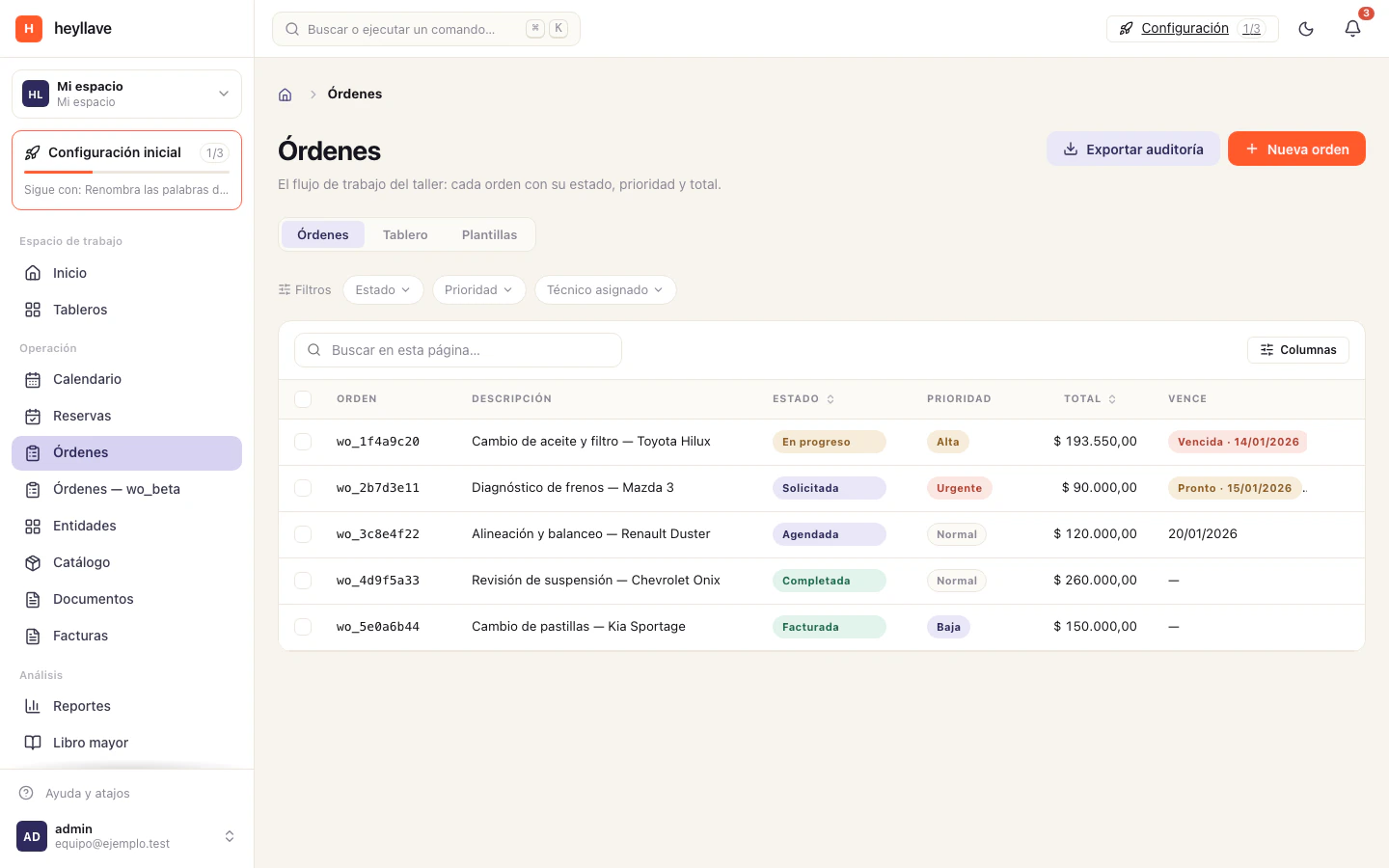
Prepare the workspace
- Define records. Configure one entity for customers and another for vehicles, machines or other assets. Decide which fields the team needs and who can view them.
- Organize the catalog. Separate parts, materials and labor. Decide which categories track stock and which units or locations you will use.
- Set up appointments if work is scheduled. Create service types, resources and availability in Bookings and availability.
- Set owners and access. Limit who may create, assign, change status, record time and complete work orders.
Configure work orders
Settings → Modules → Work orders → ConfigureThat screen offers seven settings. Turn on only the ones your process uses:
| Setting | What it does | How it arrives |
|---|---|---|
| Time tracking | Record the hours worked on each order. | Off |
| Checklists | Attach task checklists to each order. | Save it to set it |
| Crews | Assign whole work crews to an order. | Off |
| Priorities | Enable priority levels per order. | Save it to set it |
| SLA | Track service level agreements. | Off |
| Default SLA | Target resolution hours while the SLA is active. | Save it to set it |
| Auto assignment | Dispatch strategy: off, round-robin or by workload. | Off |
For Checklists, Priorities and Default SLA the screen proposes a value before anyone has saved one, and that proposed value is not what the server uses until you save it. For those three, open Configure, leave the value you want and save, even when it already looks the way you want it.
Under Invoicing, Default tax sets the rate on every new invoice, as a percentage. Currency is not there: it is set under Settings → General.
Review all work-order options and combinations before changing settings. A toggle does not grant permissions or replace an actual supplier receipt.
Daily workflow
- Find the customer and confirm the related asset before creating the job.
- If the customer booked a time, relate the visit to the appropriate work order.
- Add labor and parts; record time, checklists or files only when the process uses them.
- If a part is missing, record the shortage. When a delivery arrives, record quantities and differences in Receive supplier deliveries.
- Review relationships and order status before completion. Check the resulting invoice and payment separately.
- Keep useful activity for the next visit and leave sensitive information out of notes or public messages.
What to verify in a trial
- A user with the intended role sees only work orders within their scope.
- An order rejects a customer or asset of the wrong type when validation is enabled.
- Parts reduce or reserve stock according to catalog and workflow settings.
- A partial delivery keeps the outstanding difference and correct supplier.
- Completing the order creates the expected invoice without treating issuance as payment.
If something doesn’t work
If the orders screen does not ask for a customer or asset the way you expected, the missing setting lives in the module configuration, not in Configure — re-read the note above. If you cannot create, assign or invoice an order, ask for the matching create, assign or invoice permission. If a part does not draw down stock, check the stock tracking on its category: it is set per catalog category, not by a workspace switch.