
A dental practice can use Heyllave to coordinate appointments and the administrative work around each visit. Configure services by appointment type and assign the resources involved, such as a professional or treatment room.
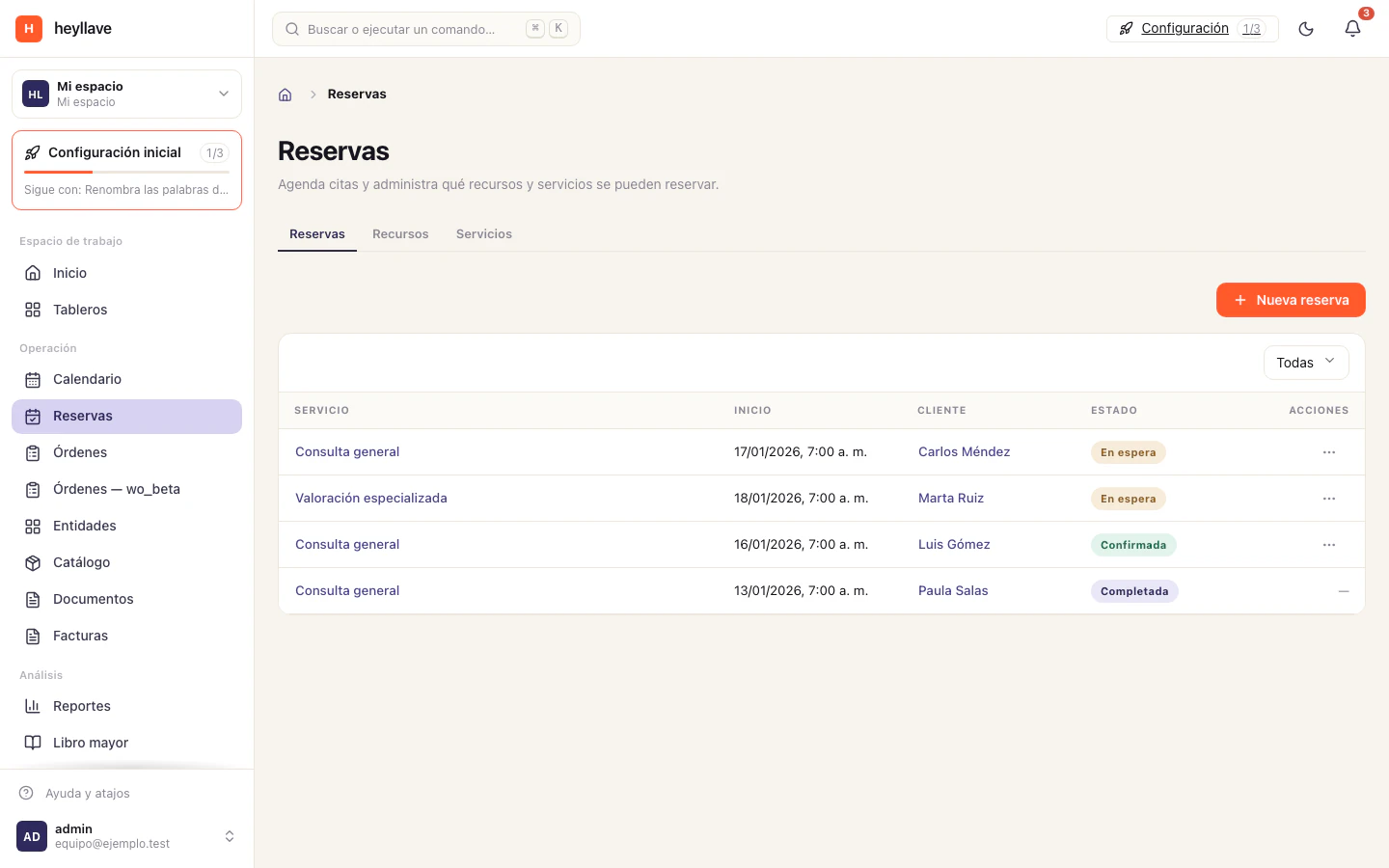
Configure services and the calendar
- Create the services you want to offer under Bookings → Services and set a name, key, duration and minimum notice.
- Add required resources. A booking may need both the professional and an available room.
- Decide whether the service is available for public booking. Customer verification depends on public bookings being enabled.
- Turn on Requires approval if someone must review each request before confirming it.
- Set party size, recurrence and daily, weekly or monthly limits to match how the practice manages appointments.
See Bookings and availability for every service control, dependency and combination.
Combine modules carefully
| Need | Module | How to use it |
|---|---|---|
| Look up contact details | Entities | Define a customer type and limit fields to the operational information needed. |
| Coordinate the team’s work | Work orders | Use orders for administrative or service tasks the team needs to assign and track. |
| Share forms or documents | Documents and portal | Check the recipient and visibility before sharing information. |
| Charge for services | Invoicing | Configure tax, numbering and fiscal identity before issuing documents. |
| Communicate changes | Conversations and notifications | Check the channel, recipient and message before sending. |
Heyllave organizes appointments, customers and operational tasks. Do not turn general notes, messages or custom fields into a clinical record. Keep clinical history and health data in the clinical system approved by the practice.
Trial workflow
- Create a trial service and assign a professional and room.
- Try booking it through the flow customers will use. Check verification and approval if enabled.
- Change or cancel the appointment using the configured actions and deadlines.
- Confirm that only intended roles can see the related records and documents.
- Issue a trial invoice and verify its details and status separately from payment.
If something doesn’t work
Bookings is a foundation module and always available; Work orders is optional. If a time does not appear, check resource availability and the workspace limits first, not the module. If you cannot approve or reschedule an appointment, ask for the matching approval or reschedule permission. Keep clinical records in the system authorized for that purpose.