
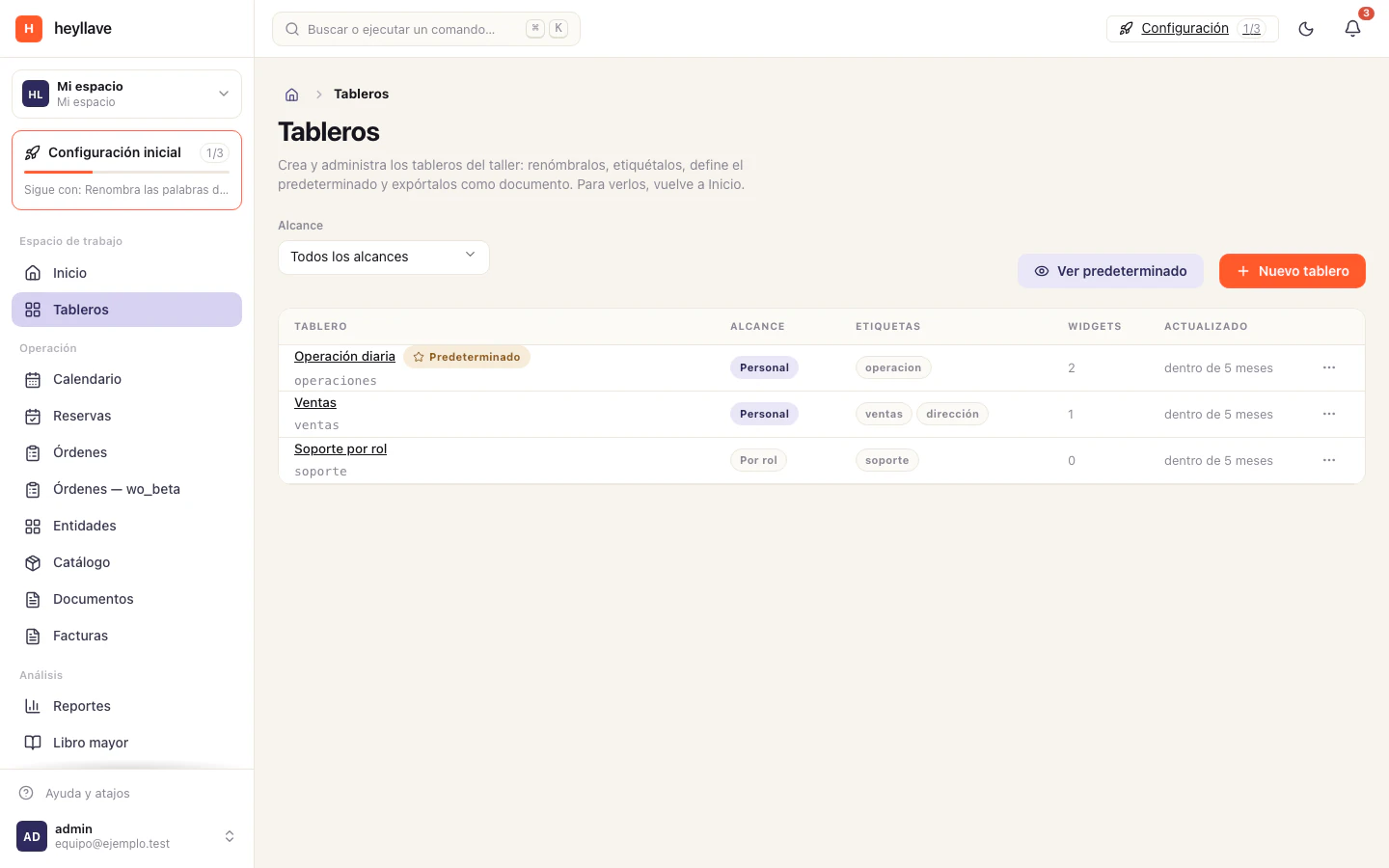
Dashboards collect workspace indicators. Reports use available metrics to answer a specific operational question.
Open a dashboard
- Open Dashboards and select the intended dashboard.
- Check which widgets have current data and which are empty.
- Review the displayed value or time series.
- Confirm the metric’s period and meaning before comparing results.
An empty dashboard can mean the enabled modules have not supplied metrics or no reading has been run. It does not automatically mean there are no business records.
Run a report
Open Reports, choose an available definition and select Run. Complete the requested parameters and review the result. When supported, save a reading to compare it later.
Available reports depend on modules and permissions. Defining a report does not create the underlying data it needs.
Start with a question
Decide what the team wants to know, such as the number of open work orders or overdue invoices. Choose the metric and parameters that actually answer it.
Check unexpected results
Review the selected workspace, time period, source metric and your access scope. If the result still appears wrong, collect the report reference, parameters and expected result for the help center.
See work orders and invoices.
Browse the available metric catalog →.
If something doesn’t work
Dashboards is a foundation module and always active; Reporting is optional and has to be enabled. If a dashboard is missing, check dashboard read access; if a query will not run, metric-run access; if export is unavailable, export access. An empty metric usually means the module feeding it is off or the chosen period has no data, not that the dashboard is broken.