
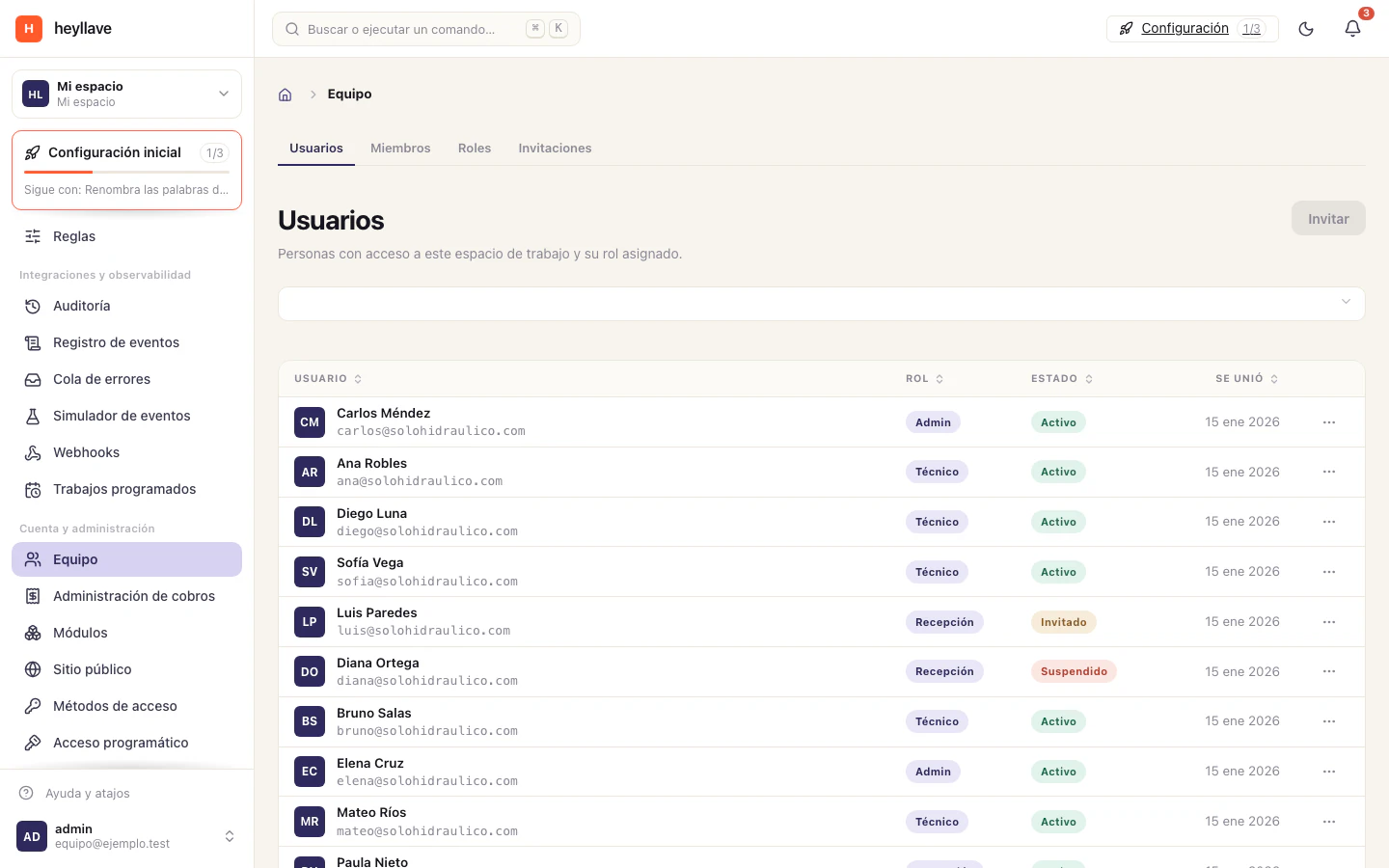
What each person can see and do in your workspace is decided by their role. A role is a name and a list of permissions; every member has one.
System roles and custom roles
| Type | Who manages it |
|---|---|
| System | The platform. They ship with your workspace and their permissions cannot be changed or removed. |
| Custom | You. You create, edit and delete them. |
One role can be marked as the default: it is the one new members get when nobody picks another.
What a permission is
A permission authorizes one action on one resource, with a scope. For example: “view work orders”, “create invoices”, “manage roles”.
The part that takes getting used to is the scope: being able to view work orders is not enough, you have to say which ones.
| Scope | What that person sees |
|---|---|
| All | Every record in the workspace. |
| Own | Only the ones they created. |
| Assigned | Only the ones assigned to them. |
| Their crew’s | The ones belonging to their team or crew. |
| Created by them | The ones they recorded. |
That is how a technician sees their orders without seeing the rest of the workshop’s, while a supervisor sees all of them — same permission, different scope.
Create a role
Team → Roles → Create role-
Name. Make it self-explanatory: “Workshop supervisor”, “Reception”, “Accounting”.
-
Description. One line on what this role does. Your future self will thank you in six months.
-
Permissions. Tick the ones it needs. They are grouped by module and each explains what it enables. At least one is required.
-
Default role. Tick it if this is the one new people should receive.
From a role’s detail view you can see Members with this role, so you know who is affected before you touch it.
Delete a role
You can only delete a role that is not assigned to anyone. Reassign its members first. System roles cannot be deleted.
Temporary roles
You can raise someone’s role with an end date: covering an absence, a month-end close, an audit. When it expires, the person returns to their previous role and remains a member.
When a temporary role ends, an operation that depended on those permissions can fail on its next run. A recurring contract may need attention once its authorization is no longer valid. Check the identity and permissions a process needs before letting temporary access lapse.
“I don’t have access to this”
It is almost always a permission, not a fault. When a section tells you so, the
message names the missing permission (settings.read, settings.manage,
modules.read, tenants.manage.all). Pass it to whoever manages roles.
Before asking for it, rule out the rest:
- Is the module enabled? If not, the section does not exist for anyone. → Modules
- Is the setting switched on? Features like time tracking or SLA return “no permission” while they are off. → Module settings
- Is it hidden in the navigation? An administrator may have hidden the entry. → Navigation
- Are you in the right workspace? Your permissions are per workspace.
Check what someone sees
The quick way: View as. From Team → Members, in an active member’s menu. You see the product exactly as that person does, in read-only mode and time-limited.
It is far more reliable than reading a permission matrix and imagining it.
If something doesn’t work
Reading roles, creating, updating and deleting them are separate permissions: you can see the list without being able to edit it. If someone still has no access after you widen their role, confirm that the module providing that permission is enabled — a permission from a disabled module enables nothing. To check what another person sees, use the view-as feature, which is also a separate permission.