
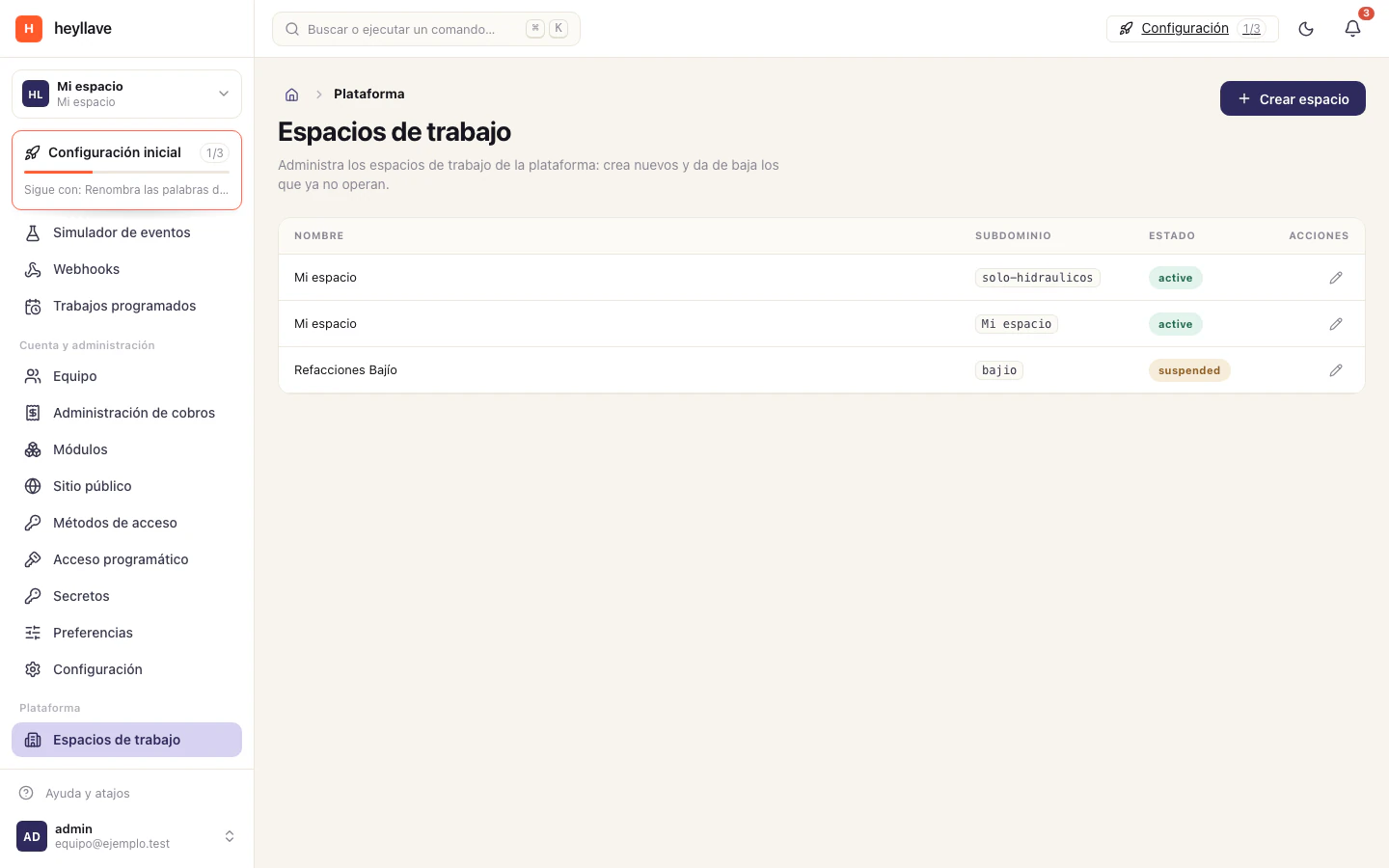
A workspace is your business inside Heyllave. It has its own name, its own address, its own team, its own enabled modules, its own plan and — most importantly — its own data.
In the product you will also see the bare word workspace, and somewhere technical the word tenant. They are the same thing.
Isolation
Access to customers, work orders and invoices is evaluated inside the workspace and according to each member’s permissions. Select the right workspace before you look anything up or change it.
Separating data does not mean each workspace has independent infrastructure. If you hit an availability problem, raise it with your administrator and have the workspace reference ready for support.
Your workspace address
Every workspace has a subdomain:
your-business.heyllave.appIt is the address your team bookmarks and the one that appears in invitations. You can see it under Settings → General → Identity; the subdomain is shown read-only and is not changed from that screen.
If you also publish a public site, that site can be
served from a domain of your own that you manage — something like
www.your-business.com — with its DNS verification and its certificate.
Belonging to several workspaces
One email address can be a member of several workspaces: an accountant with three clients, somebody advising two workshops, a group with several branches.
- On the sign-in screen, enter your email and Heyllave shows which workspaces you have an account in.
- Once inside, use the workspace switcher at the top of the sidebar to move between them. You can also go straight in by typing the subdomain.
Your role is per workspace. You can be an administrator in one and a technician in another; permissions do not travel with you.
Workspace status
A workspace can be:
| Status | What it means |
|---|---|
| Active | Normal operation. |
| Suspended | Nobody can sign in. The data is untouched. |
| Deleted | Closed to the team. The data is retained and support can reactivate it — unless permanent deletion was chosen, in which case there is no way back. |
Several branches: one workspace or several?
This is the question almost every business with more than one location asks. The short rule:
One workspace if the branches share a catalog, a team and customers, and you want to see the whole business together. Separate by inventory locations and, if needed, by module instances.
Separate workspaces if each branch has its own legal entity, its own invoicing, its own team with no overlap, and you do not want them to see each other. Bear in mind that each workspace counts as a workspace on your plan, and that reports are not consolidated across workspaces.
What is configured at workspace level
| Area | Where |
|---|---|
| Name, logo, subdomain | Settings → General |
| Language and time zone | Settings → General → Preferences |
| Theme and brand color | Settings → Appearance |
| Sidebar menu | Settings → Navigation |
| Custom wording | Settings → Labels |
| Enabled modules and their settings | Settings → Modules |
| Access policy | Settings → Security |
| Plan and usage | Plan and billing |
| Team, roles and invitations | Team |
If something doesn’t work
Viewing the workspace and changing it are separate permissions, and workspace identity may require a different one from modules. The subdomain is read-only for everyone, so that is not a permissions problem. If you belong to several workspaces and your data is missing, confirm which one you are in first: each workspace has its own team, its own information and its own role for you.