
Conversations gathers threads from the channels your business has connected. From there you can locate a thread, review its context and reply when the channel and the conversation’s state allow it.
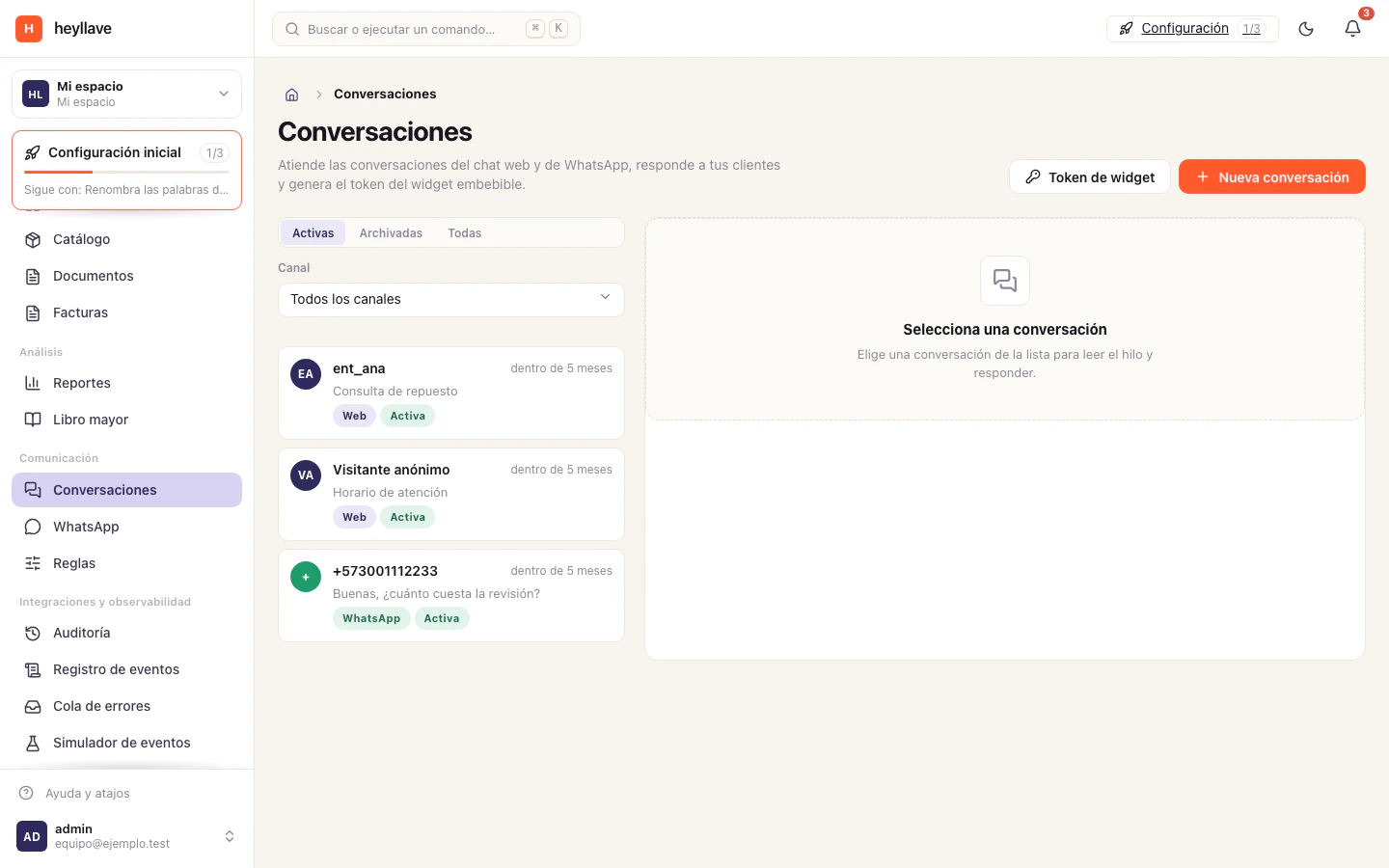
Find and reply to a message
- Open Conversations.
- Search or filter for the customer’s thread.
- Review the history and the linked entity to confirm you are replying to the right person.
- Write the reply and send it through that thread’s channel.
Which conversations are available depends on the channel being connected and on the window that still allows a reply. If the thread does not appear, check the channel and the customer relationship. Avoid creating another thread when the existing one holds the service history; if the customer association is wrong, ask an authorized person to correct it.
Set up web chat
Under Conversations → Widget token you can open a preview and get the embed code. The preview and the session token are for a development demonstration; do not reuse one token for every visitor. To publish it, whoever maintains your site must configure the server to create one session per visitor, as the form explains, and then place the code on the page.
Do not paste a private key or a secret into the public site. If your site has no server that can create sessions, ask a developer to review this integration before publishing it.
Connect WhatsApp Business
The connection is managed from WhatsApp → Connection. Whoever configures the channel needs access to the Meta Business account and to the number being connected. Fill in the identifiers and credentials the screen asks for, and treat the secrets like passwords. Store or replace credentials only in the connection screen.
For business-initiated messages outside the permitted window, Meta requires an approved template. From WhatsApp → Templates you can create one, fill in its language and category, review the preview and submit it for review. Each language version can have its own state.
Guided connection and interactive messages
If the screen offers Meta’s guided connection, the authorized person at the business must complete that flow with the correct account and number. Come back to Heyllave and check the status; starting signup does not confirm the channel is connected.
Where interactive menus or buttons are offered, review their labels and the destination of their actions before sending. A delivery error does not confirm whether the customer received the message or carried out an action.
Review before sending
Check the phone number with its country code, the linked entity and the value of each variable. The message is sent with the component order shown in the preview. If Meta rejects a template, read the reason and correct the content before submitting it again.
If sending fails
Read the channel’s error, then verify the number, the account connection, the template approval and the variable values. Use the help center to share the error reference without including access tokens or full customer conversations.
If something doesn’t work
Conversations is an optional module and needs Entities enabled. If a thread is missing, check whether your permission covers every conversation or only the ones you take part in. Managing channels and templates are separate permissions from reading. If a WhatsApp message does not go out, the problem is the channel state and the approved template, not the thread: starting Meta signup does not prove delivery works.
Use the business’s WhatsApp self-service
Open the menu or buttons offered by the business and follow its available options. If the flow asks you to verify your email with a code, complete that step inside the business’s legitimate flow; do not send the code to another conversation.
Before confirming a booking or change, review the service, date, time zone and policy shown by the flow. If a menu or option has expired, ask the business for a fresh one instead of repeating an old action. Availability depends on the business’s connected channel, enabled modules and offered options.