
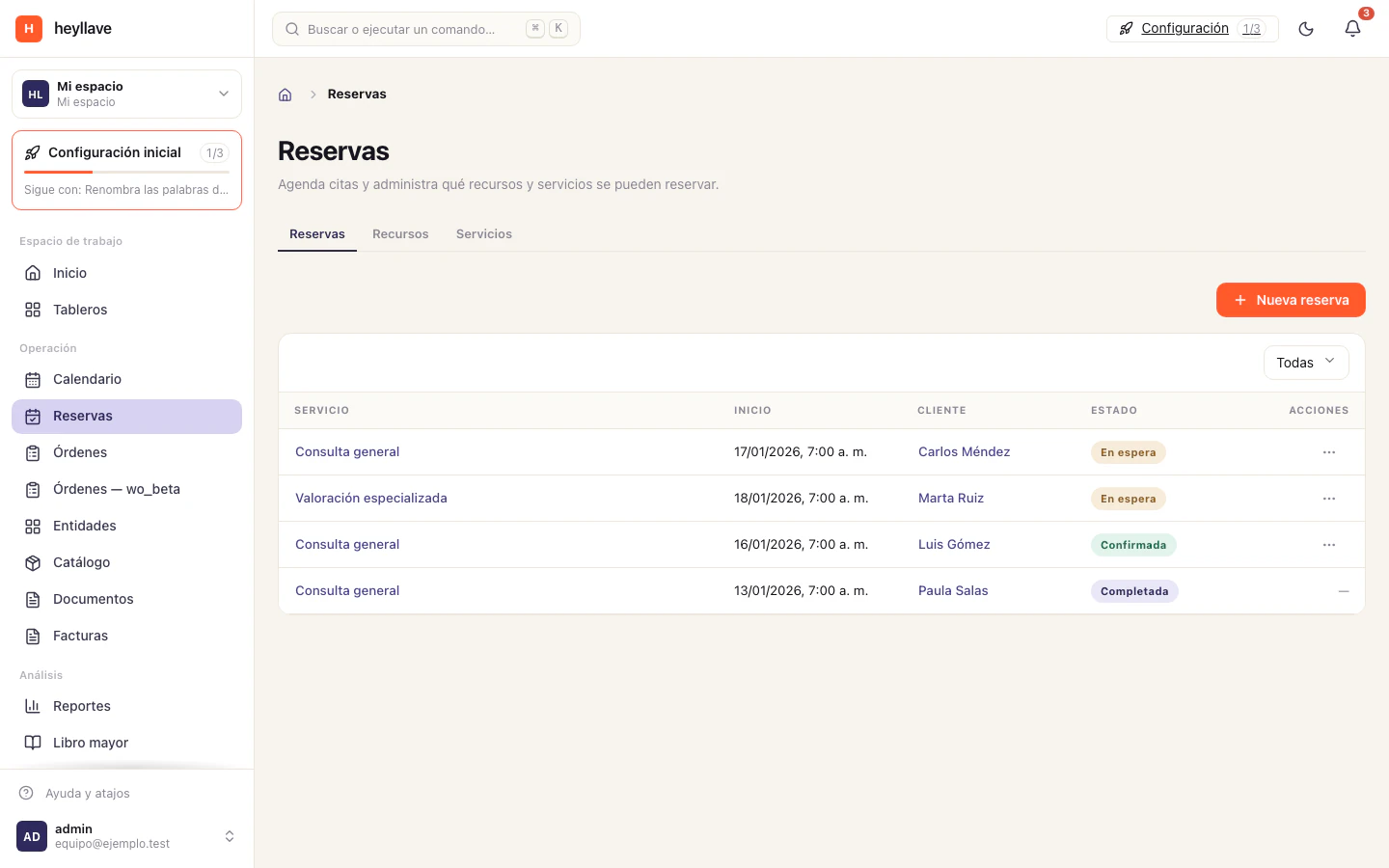
Bookings brings together appointments and the resources needed to schedule them. The page has three tabs — Bookings, Resources and Services — and each appears according to your permissions.
Before scheduling
Prepare the services customers can book and the resources each service needs. A resource may represent a person, piece of equipment or space. Availability is calculated from assigned resources and their schedules; if a slot does not appear, check that the required resource is active and available at that time.
Configure a service
Open Services and select New service or Edit. The fields cover service identity, public access and booking policies:
| Group | Options |
|---|---|
| Service | Name, key, duration, required resources, minimum notice and description. The key identifies the service and is locked while editing. |
| Confirmation | Requires approval determines whether a booking needs review before confirmation. When editing, Active enables or disables the service. |
| Public bookings | Allow public bookings publishes the service in the booking flow. Require verification can only be enabled when public bookings are on. |
| Capacity and recurrence | Maximum party size; whether recurring bookings are allowed; maximum recurrence count when recurrence is enabled. |
| Usage limits | Maximum bookings and maximum minutes per day, week and month, plus the time zone used for these limits. |
| Price | Service amount and currency. |
| Cancellation | Whether a reason is required — nobody, staff, customer or both — and an optional late-cancellation fee with a time window, amount or percentage. |
| No-show | Optional no-show fee, expressed as an amount or percentage. |
Verification, recurrence count and fee fields depend on their related toggle. Set a price before using percentage-based fees. Save, then reopen the service to confirm its values and status.
A new service arrives at 30 minutes long, with no minimum notice, active, with one required resource, and with maximum party size set to one. If you are going to serve groups, that is the first field to raise.
Workspace limits that cap every service
Above whatever you configure on the service, the workspace keeps its own ceilings, and those always win. They do not appear on the service form, so when a value you saved does not produce the result you expected, check this table before looking further.
| Workspace limit | How it arrives | What it means |
|---|---|---|
| Maximum party size | 10 people | Ceiling on seats per booking, above whatever any service declares. |
| Occurrences per series | 26 | Ceiling on appointments in one recurring series. |
| Maximum advance window | 365 days | How far ahead anyone can book, above the service’s own notice window. |
| Hold duration | 5 minutes | How long a pending booking lives before it expires on its own. |
| Reschedules per booking | 2 | Applies when the service does not set its own maximum. |
| Limits time zone | UTC | Day, week and month boundaries are cut in this zone when the service does not name its own. |
Two workspace behaviours explain most surprises:
- One person cannot hold two bookings that overlap in time. The workspace refuses the booking when that customer already has an active one crossing the requested time, in any service. That is what you want for a consultation, and a nuisance when you book several tables under a single contact.
- Notifications go out without a link until the workspace declares its public booking address. While that address is empty, the confirmation and the reminder are sent with no booking link at all — not with a broken one.
These values belong to your workspace’s module configuration, not to the service form. Ask whoever administers the installation if your operation needs different ones.
Manage resources
In Resources, check which people, equipment or spaces can be assigned. Make sure every service has enough of its required resources and that those resources are available for the times you want to offer. Resource availability is separate from the booking and minute limits set on each service.
Use cases
The same module supports one-to-one appointments, group bookings and schedules across sites. Start by identifying what limits each time slot: a person, a room, a piece of equipment or the service’s overall capacity.
What happens after choosing a time
Bookings go through these checks in order. Only times that meet availability and service limits are offered. Contact verification and staff approval apply only when enabled for that service.
Configurations that work well
| Case | Recommended configuration | Avoid |
|---|---|---|
| Customers schedule their own appointments | Turn on Allow public bookings. Add Require verification when you need to validate contact details. | Requiring verification without publishing bookings; customers would have no public booking flow. |
| Requests that need staff review | Turn on Requires approval only for services that need review. Tell staff where to find pending requests. | Requiring approval for every routine appointment when no decision is needed. |
| Group classes, tables or sessions | Set the service’s maximum party size and check that resources can handle it. Test slot search with the usual party size. | Setting the service limit above the resource’s available capacity. |
| Services that can repeat | Allow recurring bookings and set a maximum number of repeats if the schedule can commit those future times. | Enabling repeats without checking future availability and team capacity. |
| Late-cancellation or no-show fees | Set the window and amount or percentage; set the service price before using a percentage. Explain the policy before customers book. | Turning on a fee without a clear window or amount, or treating the fee as a replacement for a cancellation policy. |
One-to-one appointment: consultation or professional service
Configure the service with its real duration and require the resources that must be available together. For example, a consultation may need both a professional and a room.
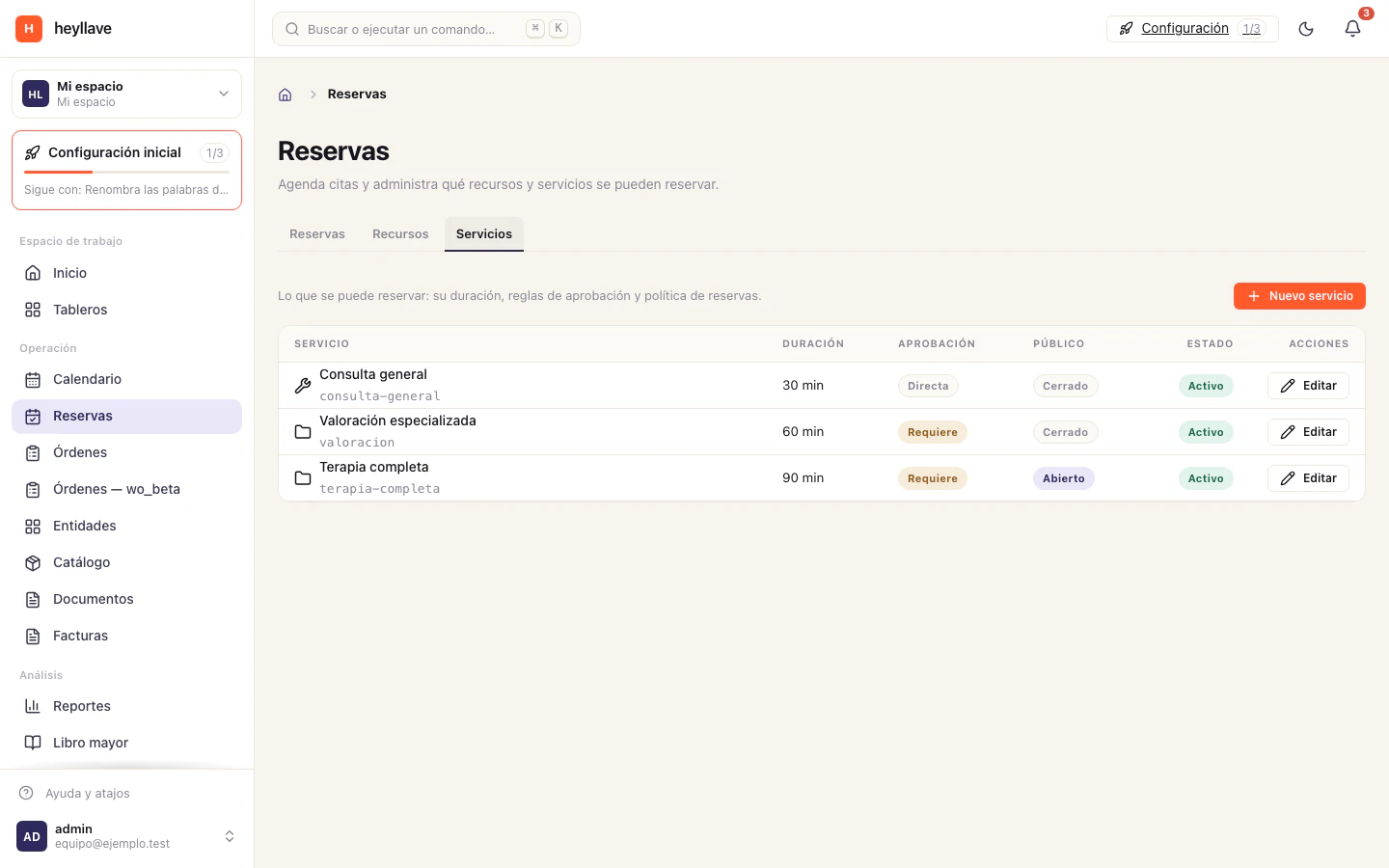
- Under Services, set the duration, minimum notice and required resources.
- Under Resources, set the professional’s and room’s schedules. A time is offered only when both are available.
- If customers book from the site, enable Allow public bookings. Turn on Require verification if you need to verify their contact; turn on Requires approval if staff must review each request.
- Create a test booking and check that a time is unavailable when either resource is occupied.
For a professional practice example, see Dental practices. Keep clinical records in the system approved for that purpose.
Group booking: table, class or session
Use party size to avoid offering times that cannot accommodate everyone. The resource represents the space or item whose capacity limits the booking; the service sets the maximum party size.
- Set the service’s maximum party size and the resource’s capacity.
- Enable public bookings if customers will choose their own time.
- Check availability with the expected party size, not just one person. For an integration, the slot query accepts the party size; see Connect another tool.
- Test a group within the limit and one over it; the latter should not receive a time the service cannot accommodate.
The module manages bookings and capacity; it does not record sales or kitchen tickets. See Restaurants for combining table bookings with orders from the public site.
Schedule by site: people, rooms and equipment
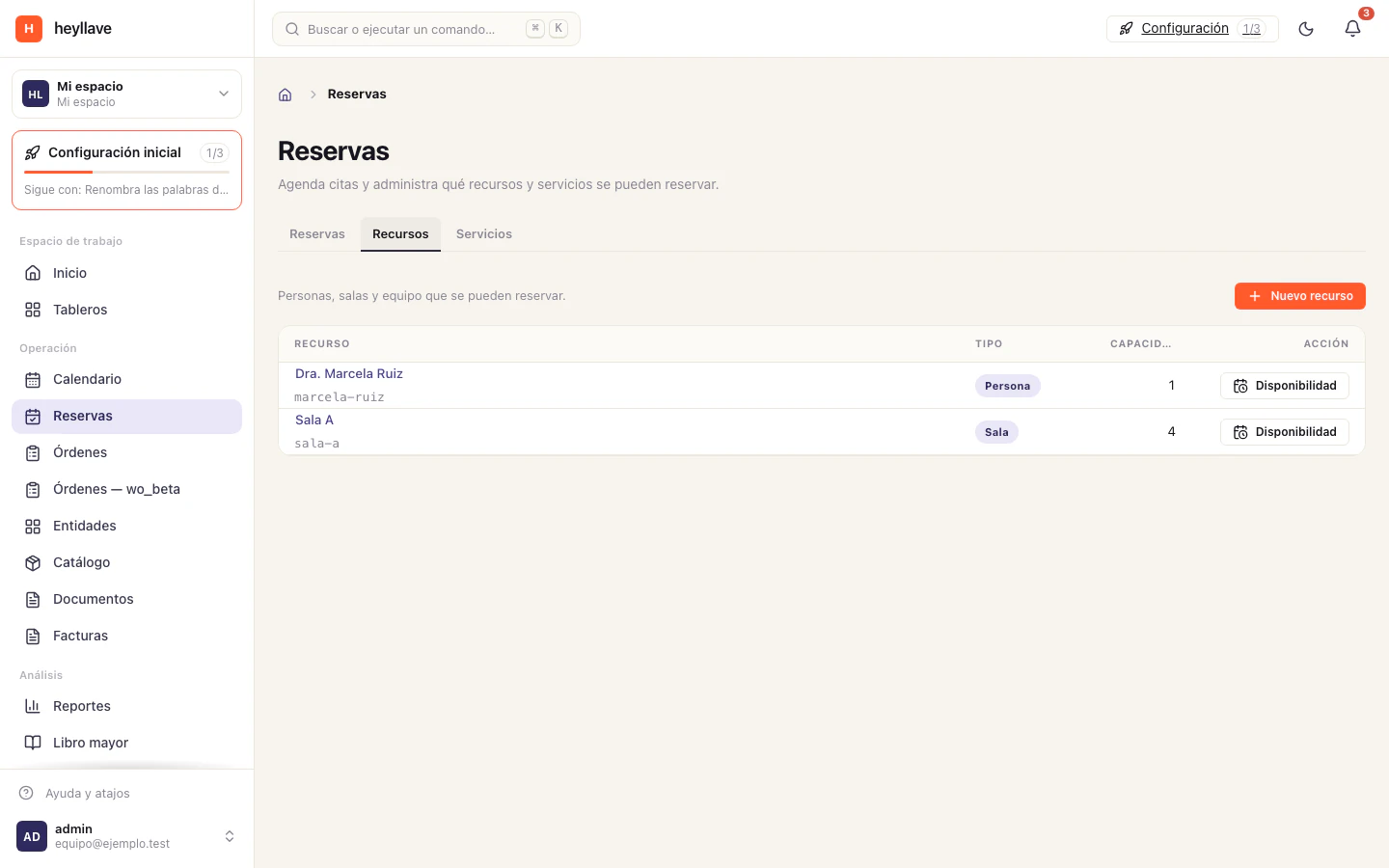
If you work across sites, assign each resource to its location. A resource with no assigned site can be shared across sites. Then query or publish times for a specific location, and check that the person and space belong to the same site.
This works for a branch with multiple rooms, a repair shop with service bays or a team that makes visits in different areas. For a repair shop, a booking coordinates intake; parts and repairs belong in a work order. See Repair shops and workshops.
Availability rules (conditions)
A service’s schedule says when you can work. Conditions say what else has to be true for that time to be bookable — by looking at what is already on the books.
A condition is written once and applied to every attempt. It has three parts:
The full vocabulary
| Part | Options | What it means |
|---|---|---|
| What to look for | exists · absent · at least N | Whether a booking like the one described is there, missing, or already N or more. |
| Over which window | overlaps · window · same day · same week · same month | How an existing booking’s time is compared with the attempt. |
| In what relationship | same customer · same resource · same site · whole workspace | Which existing bookings count towards the question. |
| Effect | block · allow · require approval | The outcome when the rule matches. |
A workspace allows up to 64 active conditions. If you need more, what is usually missing is a resource with the right capacity, not another rule.
Examples that solve real cases
| Case | What · window · relationship | Effect |
|---|---|---|
| Mutual exclusion. A surgery day is not a cleaning day. | exists · same day · same site | block |
| Prerequisite. Surgery requires a consult completed in the 90 days before. | absent · window · same customer | block |
| Cool-down. No second treatment for the same person within 90 days. | exists · window · same customer | block |
| Escalate instead of refusing. If the customer already has a clashing appointment, let staff review it. | exists · overlaps · same customer | require approval |
| Concurrency on something that is not a resource. At most 2 surgeries in the building at once. | at least 2 · overlaps · same site | block |
The concurrency case deserves a note: at least N over overlaps compares the threshold against the peak simultaneous bookings during the attempt’s window. Two bookings touching opposite edges of that window do not count as two at once. And yes, sometimes the right answer is to model the building as a resource with capacity 2 — but when the contended thing is a licence, a steriliser cycle or a van shared between two sites, a condition is the cheaper truth.
Order matters, and that is the feature
Conditions are sorted by ascending priority and, within each channel, the last matching rule wins.
“Whichever one blocks” does not win. That looks like the obvious design and it is wrong: it would make an exception impossible to write. “No cleaning on a surgery day, except for VIP customers” has no spelling if the block always wins. With last-wins, you write the block at priority 10 and the exception at priority 40.
The two channels resolve separately and then combine. Admission beats everything: requiring approval does not soften a block, and a block needs no escalation to refuse. The only thing that lifts a block is an allow that resolves later.
Where it applies: searching is not booking
This explains most of the confusion. Conditions are evaluated at two different moments, and they do not see the same thing.
- Resource and site rules do filter the list.
- Same-customer rules are inert: there is nobody to compare against.
- The whole cascade is evaluated.
- This is where a same-customer rule refuses.
The practical consequence: a per-customer cool-down does not reduce the times shown. The customer will see the slot, pick it, and get the refusal on confirmation. If that is not acceptable for your operation, use require approval instead of block: the request comes in and your team decides, rather than leaving the customer with an error.
Heyllave warns you when a rule closes the book
When you save a blocking rule, Heyllave builds the next seven days of slots with and without that rule, and warns you if it leaves the service with no bookable time at all. It is a difference, not an absolute “zero slots”: that way it does not warn about a service that never had availability, or one already closed by a different rule.
What that warning cannot see, and you should check by hand:
- A same-customer rule, for the reason above: slot search has no customer, so the rule is inert and the warning never fires.
- A rule limited to one resource: it empties that resource’s grid by design while the service stays bookable on the others.
- A calendar change made after you saved. The warning is a snapshot of the moment you saved.
It also warns you when you place an allow above a block, because that reopens what another rule was closing.
Create and review a booking
- Open Bookings and choose the new-booking action.
- Select the service and an available time.
- Identify the customer and review the summary.
- Complete the confirmation step shown by the flow; selecting a time alone does not confirm the booking.
- Open the result and check its status, customer, resource, date and time zone.
Use the available actions in the booking details to continue its lifecycle. If the service requires approval, check its status before treating it as confirmed.
Query the schedule from another tool
An integration can read the schedule and available times through the API, filtering by date, site, status and party size. The query examples live with the rest of the technical setup in Connect another tool.
Customer changes
Rescheduling, cancellation and reminders depend on the service configuration and policy. Review the deadline, required reason and any fee before confirming a change. See Manage bookings as a customer.
If an option is missing
Bookings is a foundation module: it is always active and cannot be switched off, so what is missing is not the module. It is your permissions or the configuration. The Bookings tab requires booking read access; Resources requires resource read access; Services requires permission to manage service types. Availability also depends on required resources, service limits and the workspace limits.