
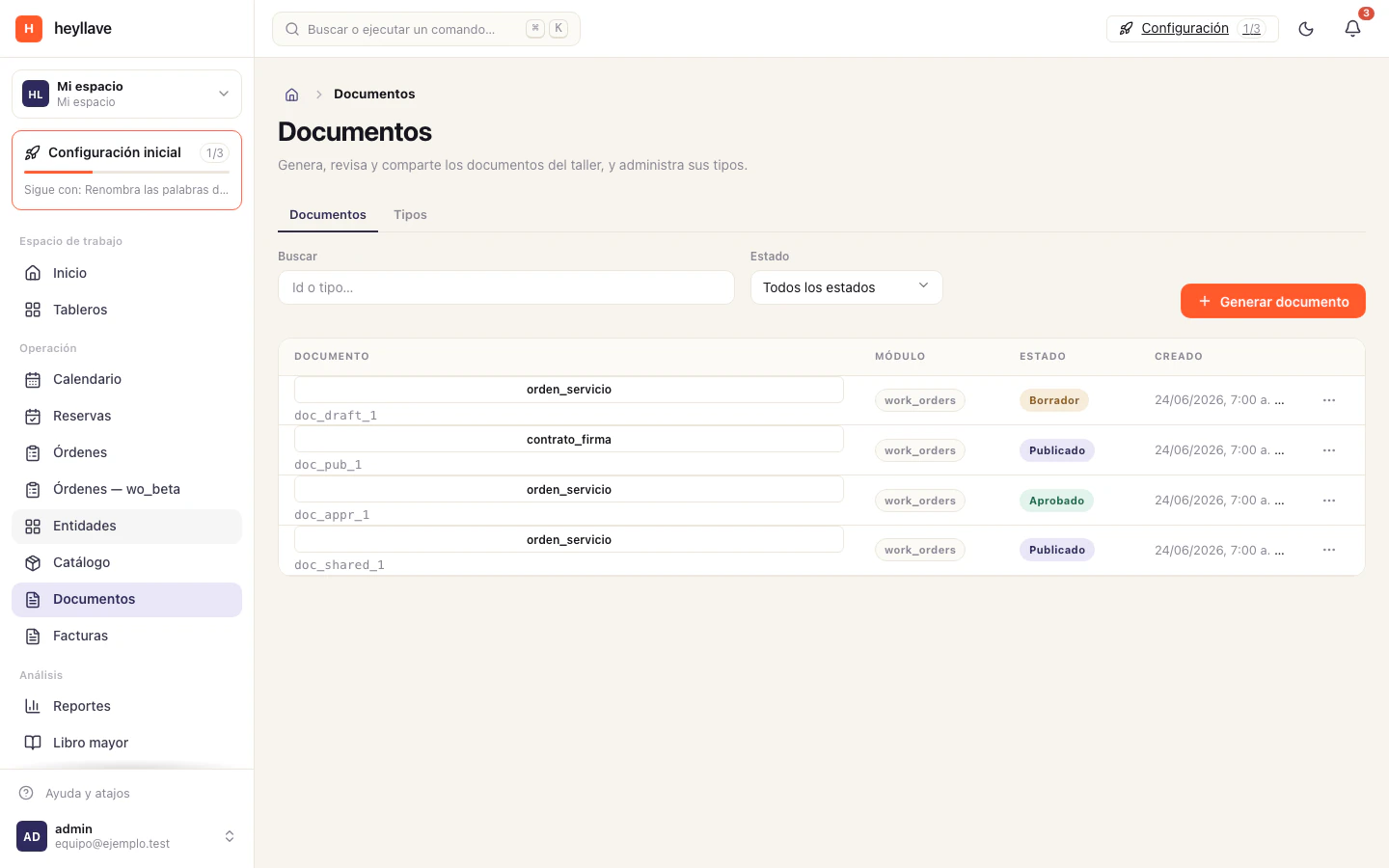
The Documents module lets you create reusable types and generate documents linked to your operation. Depending on the type and its status, the team can publish, approve, reject, sign, download, archive or share a document.
First: prepare a type
- Open Documents → Types and select Create type.
- Give it a name, the module it belongs to, and a description that explains when to use it.
- Configure the template content and review the variables available for including data from the record.
- If it has to be signed, turn on the signature requirement and say how many signatures are needed.
- Save the type and review the result before using it with a customer.
Types are managed by people with the matching permission. If you cannot see the Types tab, ask your administrator to check your role.
Generate a document
- In Documents, select Generate document.
- Choose the type and fill in the information the screen asks for.
- If the form allows it, add a reference to the originating record so you can later find the document alongside the related work.
- Choose the appropriate initial status and decide whether to share it on generation.
- Confirm the information and generate the document.
The fields depend on the type you chose. Check names, dates and values before generating, especially if the document is going out for signature. A generated file is not a substitute for reviewing its contents: correct the originating information or the template when the preview is wrong.
Follow the document lifecycle
Open the document’s actions menu to see the options allowed in its current status. A document can move through statuses such as draft, published, approved, rejected, signed or archived. Not every action is available in every status, and the options you see also depend on your permissions.
For signatures, check the requested signers and the current progress before treating the document as complete.
To give a customer access, follow Share a document →. If what you need is for them to review the service and other related records, see Customer portal →. A shared link is access to one specific document and can be revoked.
If something doesn’t work
Generating, regenerating, publishing, sharing, signing, approving and archiving a document are each their own permission, and managing document types is another. Check whether you are in Documents or Types, whether the current status allows that action, and whether your role has the permission. Some documents also depend on the module that originates them being enabled. Generating a document does not publish it, and publishing it does not share it with anyone.