
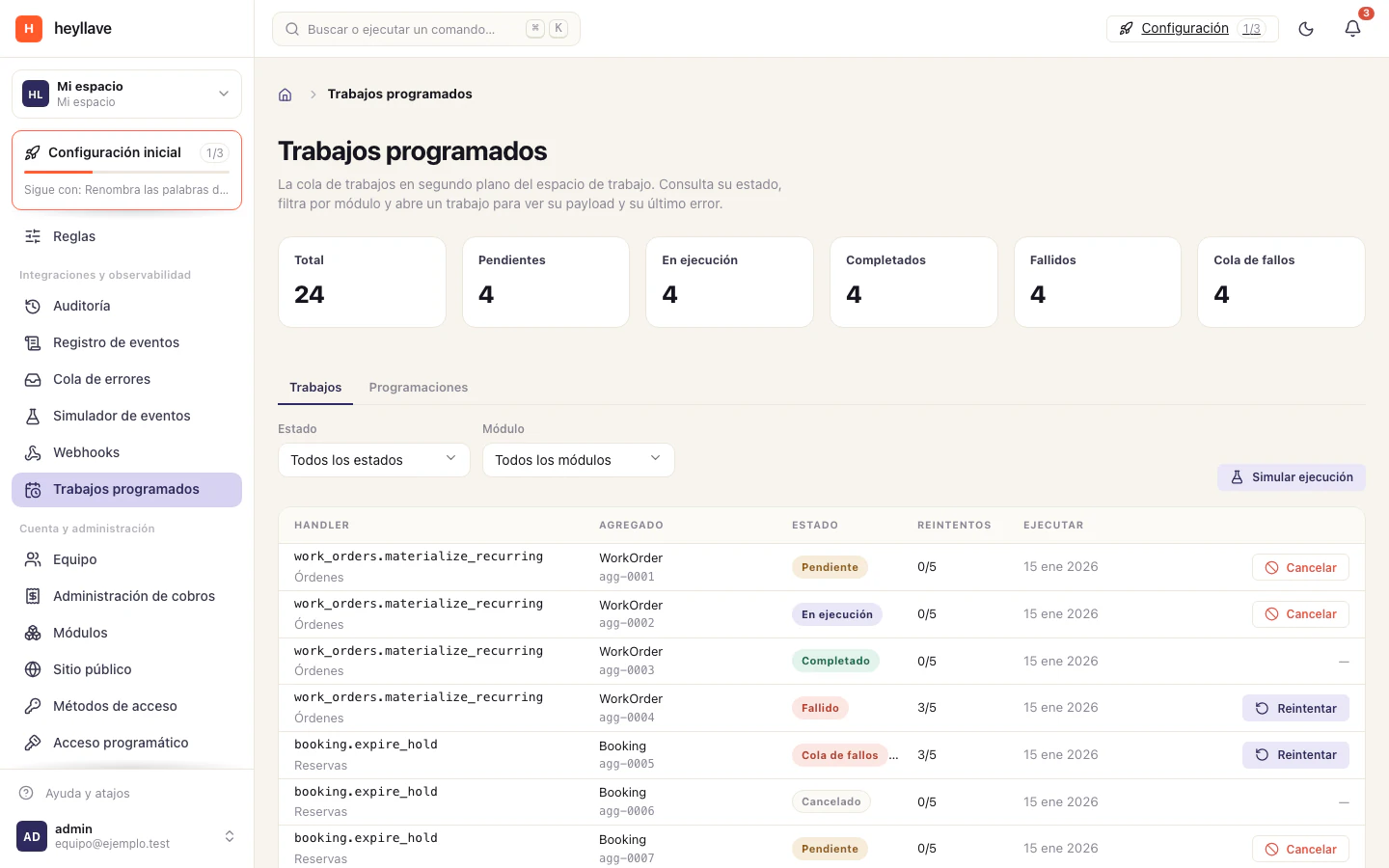
A recurring template stores the information for work that repeats, such as monthly maintenance. Each occurrence produces an order that the team can review and manage.
Prepare the template
Check that work orders and template management are available to your role. Prepare catalog items if the repeated work needs priced lines. Review the workspace time zone.
Create a template
- Open Orders → Templates and choose the new-template action.
- Give it a name and description.
- Select the customer or related record and complete the repeated lines.
- Choose daily, weekly or monthly recurrence and its interval.
- Select the first execution time and an end date if needed.
- Review the schedule summary and save.
For weekly schedules, check the selected weekdays. For monthly schedules, check the day of the month.
Review occurrences
Open the template to inspect upcoming occurrences and related orders. Use its available actions to edit, pause, generate now or skip an occurrence. Check the template and date before generating or skipping work.
Creating a template does not establish that every resulting order has the right assignee. Review the generated order and leave the next step clear for the team.
Verify before leaving it active
Start with a test customer and a near-term occurrence. Confirm the generated order contains the intended fields and lines, then review its work-order flow.
If something doesn’t work
A scheduled template generates work orders, so you need work-order permissions as well as the ability to edit the template. If an expected order did not appear, check the frequency, the next run date and whether the template is active before creating it by hand. A run that never happened is not recovered by editing the template.