
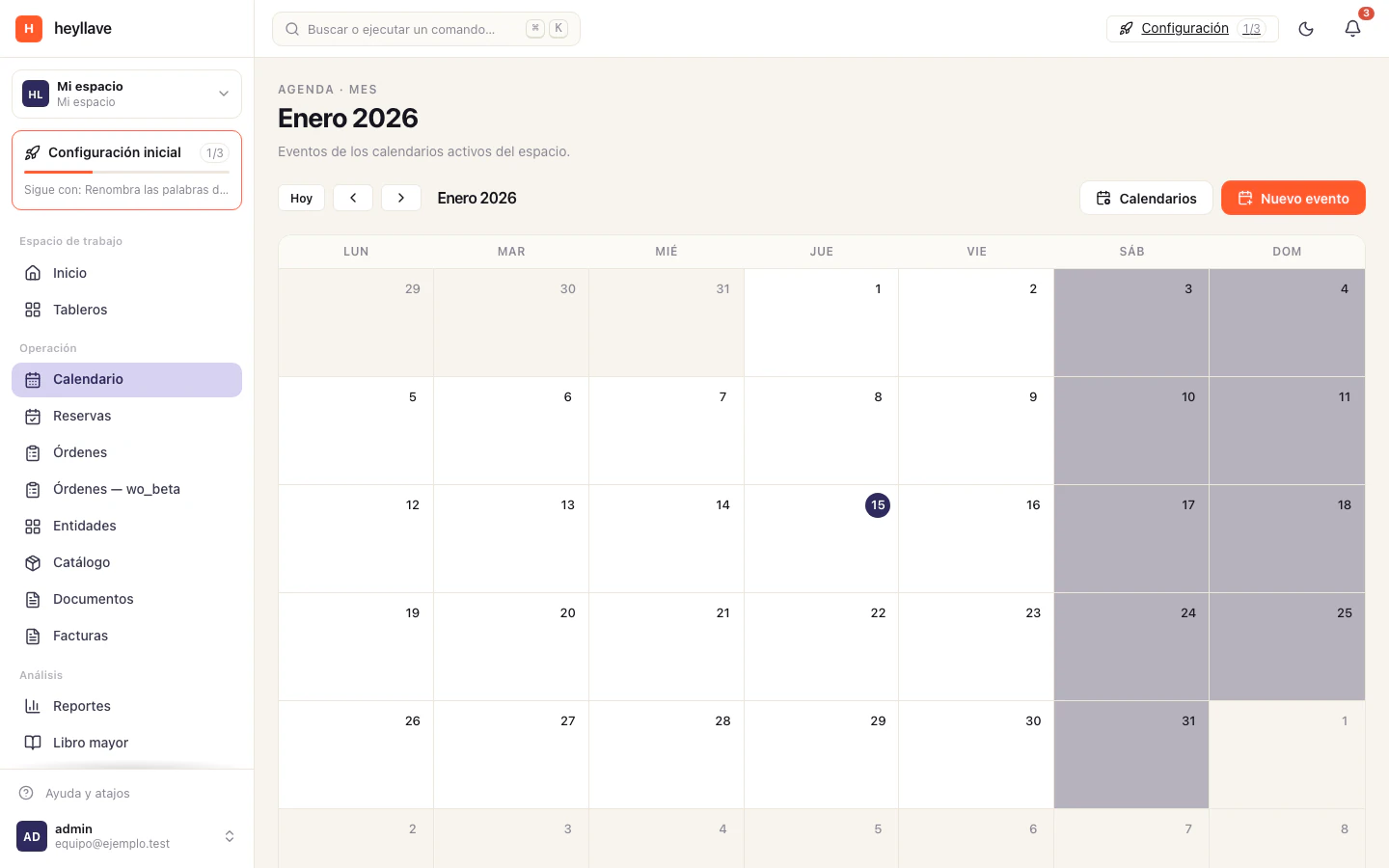
Calendar organizes workspace events in a monthly view. Separate calendars can represent teams or types of activity.
Create a calendar
- Open Calendar → Manage calendars.
- Create a calendar with a recognizable name.
- Review its time zone and save.
- Confirm it is selected in the visible calendars.
Add an event
Choose Create event or select a day. Pick the calendar, add a title and details, and review the start and end times before saving. Reopen the day or event to confirm its date and calendar.
Your permissions determine whether you can edit or delete an event. If an event disappears from the view, check calendar visibility and the displayed month before creating another one.
Connect an external calendar
Where enabled, use the calendar’s external connections to authorize Google or Outlook. Check the selected provider, calendar and connection status. An expired connection may need reauthorization.
Follow connect your calendar for setup and recovery.
Keep calendars and bookings distinct
Work orders and bookings are managed by their own flows. Do not assume that creating an ordinary calendar event creates a booking, reserves a resource or changes a work order.
Use Bookings for service availability and appointment lifecycle actions.
If something doesn’t work
Calendar is a foundation module, so what is missing is permissions or configuration. Reading, creating, updating and deleting calendars and events are separate permissions, and each has an all-or-own scope. Managing feeds and external connections are separate again. If an event is missing, confirm which calendar you are looking at before changing a role.