
Notification rules help you tell the team or the customer when something changes in the operation. Each rule brings together the event that triggers it, optional conditions, the channel and the recipients.
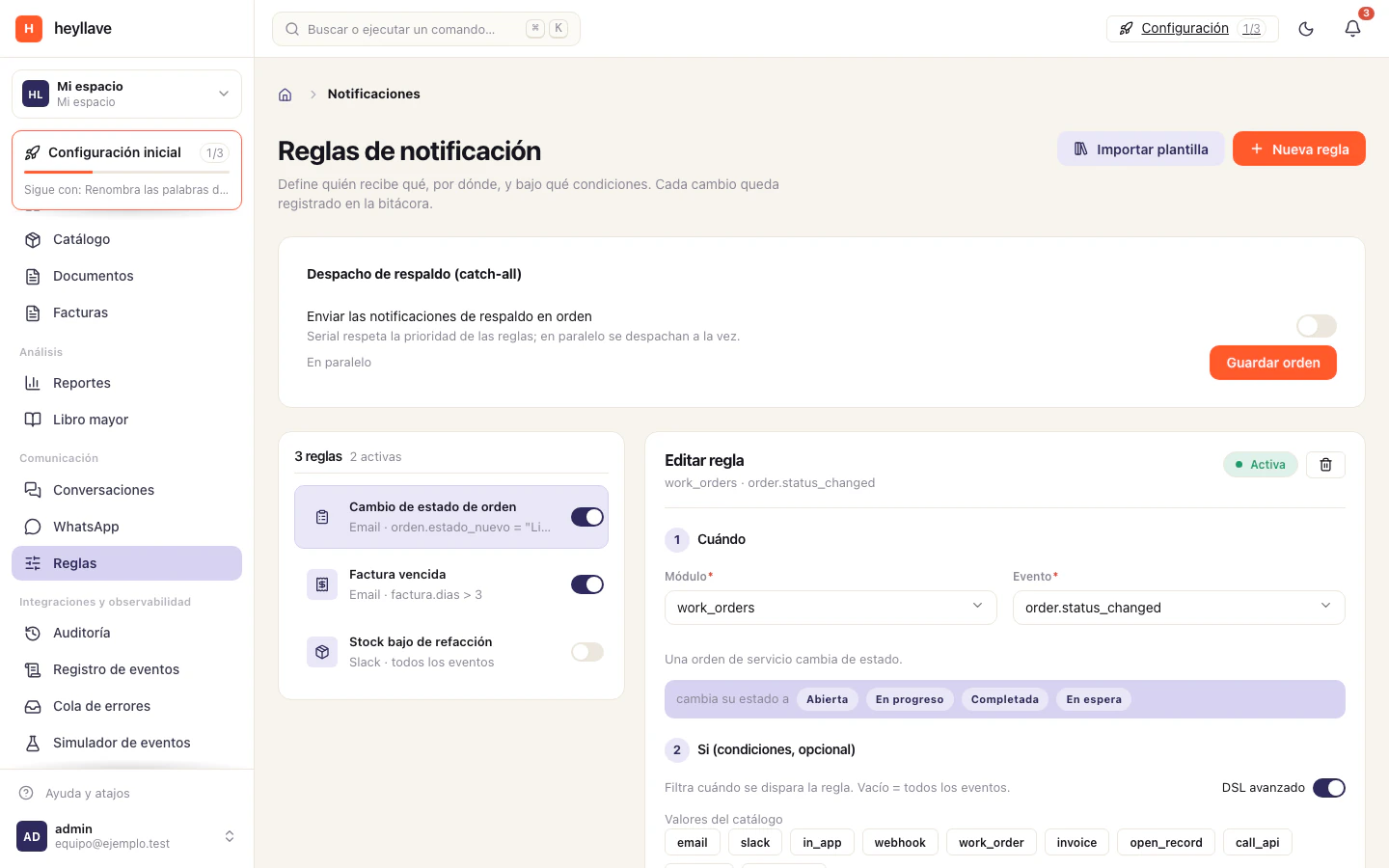
Prepare a rule
- Open Notifications or Rules from the sidebar.
- Select New rule.
- Choose the event that should start the notice.
- If it should only be sent in certain cases, add the conditions the editor offers.
- Choose the channel, review the message template and set who receives it.
- Save the rule and confirm it is activated when you want it in use.
On an existing rule you can review its details and activate or pause it. Change one part at a time and verify the result with a test record where possible. Pause a rule when you need to stop future sends while you check its configuration.
Review the message before activating it
Read the text the way its recipient would. Check that it carries the context needed, that the variable data matches the record, and that the next step is clear. Keep internal information out of a customer message.
Why a notice was not sent
Check that the rule is active, that the event actually occurred, that its conditions were met and that recipients are configured. Then confirm the channel is enabled for your workspace and that your role can manage rules. Do not keep retrying before correcting the cause.
The template library lets you save, apply and remove templates. To change the message, open the template in the visual editor from its edit button, or save it as a new one if you only need the change for a single rule. Approved WhatsApp templates follow Meta’s editing and review rules.
Personal notification switches under Preferences are stored in your current browser. They are separate from the rules that send outgoing messages.
If something doesn’t work
Reading rules and managing them are separate permissions, and templates have their own. If a notice does not go out, check in this order: the rule is active, the event actually happened, the channel is connected and the template exists. Personal notification switches live in your browser, so they do not explain why someone else received nothing.