
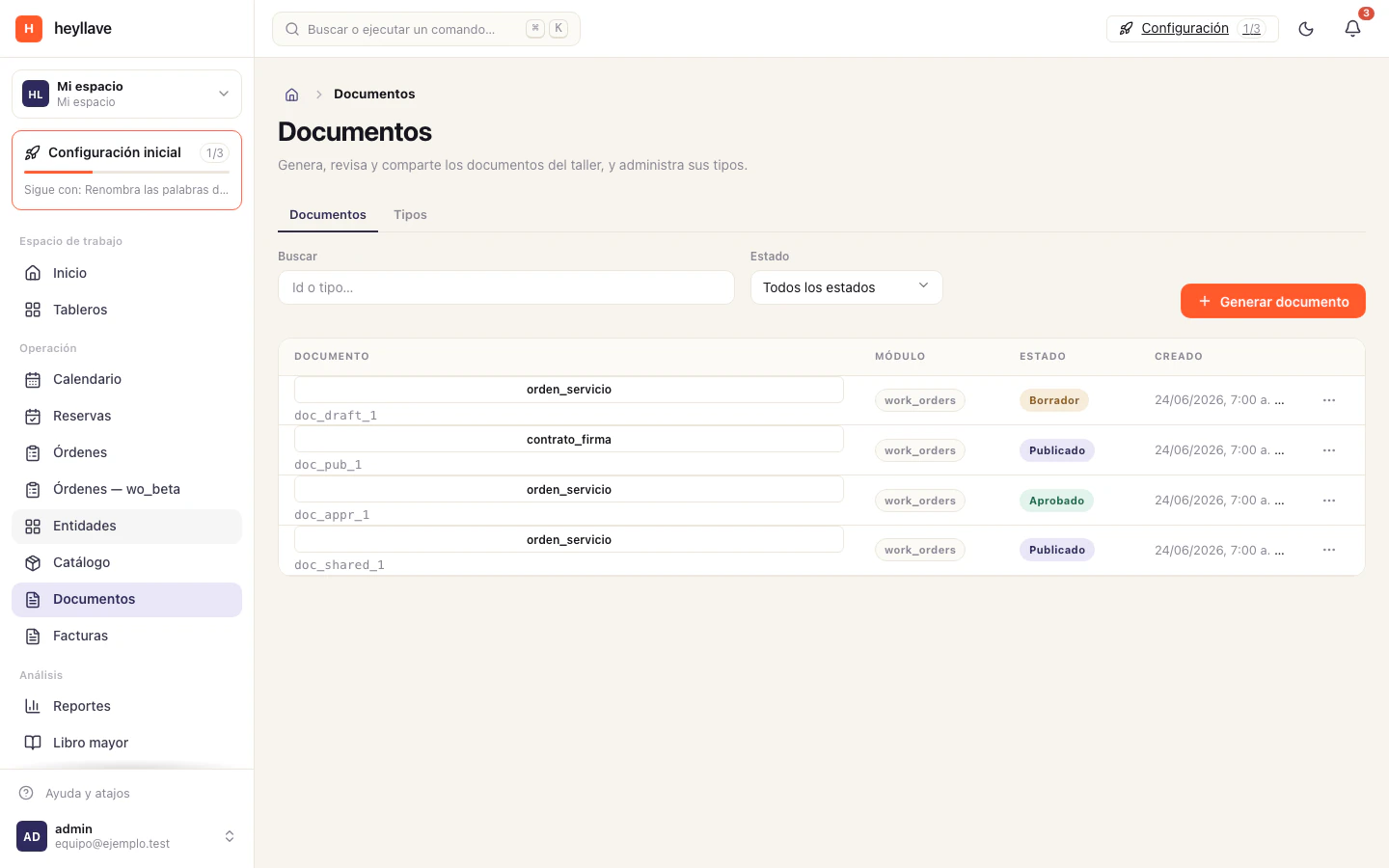
A sharing link gives access to a specific document according to its sharing settings. Treat the link as access to that content.
Create and copy a link
- Open the document and confirm it belongs to the intended customer.
- Review its content and state.
- Open the sharing action and create a link with the available access options.
- Copy it and check the customer-facing result.
- Send it through the channel agreed with the customer.
If sharing is unavailable, check the document state and your role. A link should not be used to work around a missing approval or an incorrect customer association.
Review the customer’s experience
Open the shared view using the intended access method. Confirm the document and any download or signature action match what the customer should receive.
Some documents may also appear through the customer portal. Portal access and a standalone sharing link are separate ways to reach information.
Revoke access
Return to the document’s sharing controls and revoke the relevant link when it is no longer needed. Confirm you selected the correct link before revocation and let the recipient know if access was intentionally removed.
Revoking a link stops future access through it. It does not remove copies a recipient already downloaded.
If a link fails
Check whether it expired, was revoked or requires another sign-in step. Ask the document owner for a new reviewed link instead of forwarding a staff-only URL.