
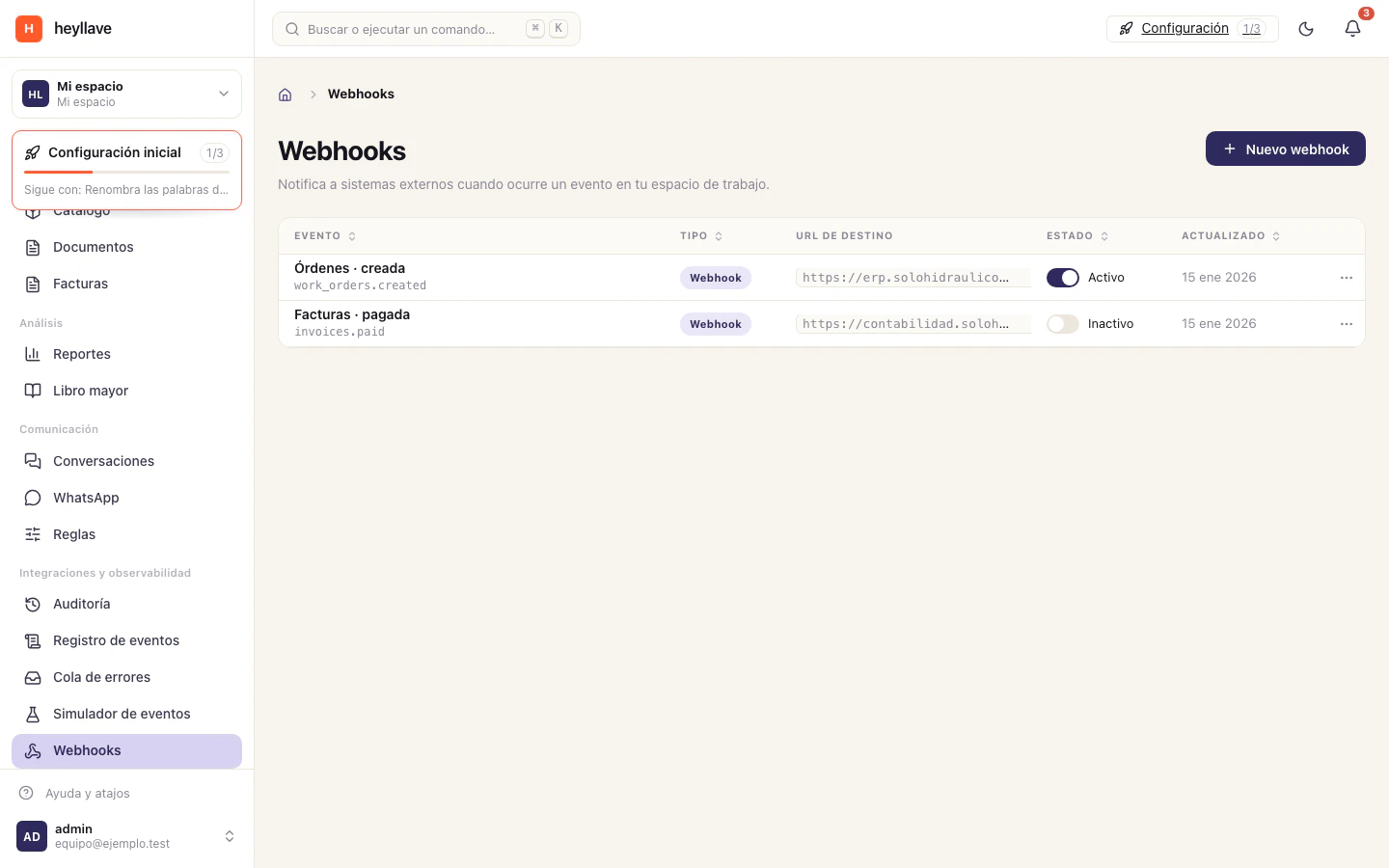
A webhook notifies another tool when a Heyllave event occurs. Arrange its receiving URL and required events with the person responsible for that system.
Prepare the connection
Confirm the HTTPS destination, the events it needs and who manages the integration. Use only the data the receiving process actually needs. Keep any signing secret in the integration’s protected configuration.
Create and check a webhook
- Open Integrations → Webhooks.
- Choose the create action and enter a recognizable name.
- Add the destination URL and required event subscriptions.
- Review the connection and save.
- Use the available test action and inspect its delivery result.
- Ask the receiving system’s owner to confirm receipt and signature validation.
The receiver must use the signing configuration established by the webhook. Do not assume a URL being reachable proves the full workflow works.
If an event does not arrive
Review the delivery result and response code. Check the destination, its HTTPS availability, event selection and signing setup. Pause the connection while its owner corrects repeated failures when appropriate.
A test checks the connection. Coordinate a separate end-to-end test to verify the business process without confusing test and real events.
Query data with the API
A webhook tells you when something happened. To read data whenever you want, the integration queries the API with explicit parameters. This section is for the technical person building the connection; none of it is needed to configure Heyllave from its screens.
Confirmed bookings for one month at one site. from and to bound when bookings start:
GET /api/v1/tenants/{tenant_id}/booking/bookings?status=confirmed&from=2026-11-01T00%3A00%3A00Z&to=2026-11-30T23%3A59%3A59Z&location=central-site&limit=50&offset=0Available times for a service over one week, for two people:
GET /api/v1/tenants/{tenant_id}/booking/services/{module}/{service_key}/slots?from=2026-11-09T00%3A00%3A00Z&to=2026-11-15T23%3A59%3A59Z&location=central-site&party_size=2To find the customer before creating a booking, the Entities endpoint accepts the search DSL. This example matches names starting with Ana:
GET /api/v1/tenants/{tenant_id}/entities/search?type=customer&filter=name=Ana*A trailing * matches by prefix; *Ana* matches the text anywhere in the name. The available fields and operators depend on the entity type’s schema.
API keys are managed under Programmatic access. Each key belongs to a workspace machine identity that carries its own explicit permission list, not a person’s role: give it only the permissions the integration needs, and rotate the key when it changes hands.
See activity and audit for event history, or notification rules when the goal is to send a message rather than integrate another system.